When working with Digital Factories and cost models, it can be useful to search the through the cost model source files to find where things are defined. The Digital Factory Toolset and Cost Model Workbench provide a Search CSL mechanism to find specific strings of code or text within a cost model.
-
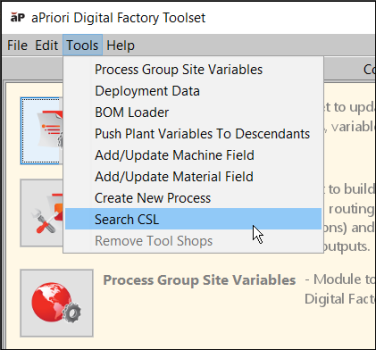
From the toolbar of any Digital Factory Toolset utility click Tools > Search CSL.
-
In the resulting Search dialog:
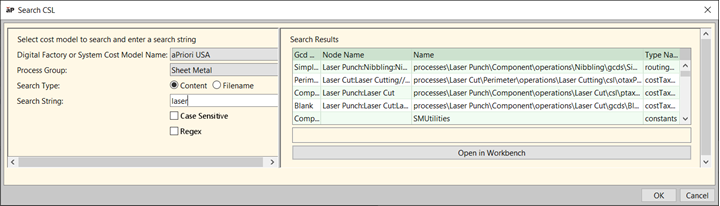
Figure: Search CSL results
Provide values for the following:
-
The name of the Digital Factory or Cost Model to search
-
The process group within the Digital Factory or Cost Model to search
-
The string to search for. The search is case sensitive.
-


As you enter text in the Search String field, aPriori instantly searches throughout the entire cost model, and returns in the right pane a list of all CSL files that include the specified string. Clicking on one of the entries displays the entire file in the lower-right pane.
This is particularly useful for tracing where certain formulas or settings are used in the cost model and can also be used to track down the specific code that creates a message seen in the application.
Note: This search does not include lookup tables, plant variables, or any Digital Factory data (machine, material, tool shop, and so on).